
Getting Started
Quickstart
Follow these steps in order to go live with WhatsApp AI booking. Most businesses complete setup in 30–60 minutes (excluding Meta verification).
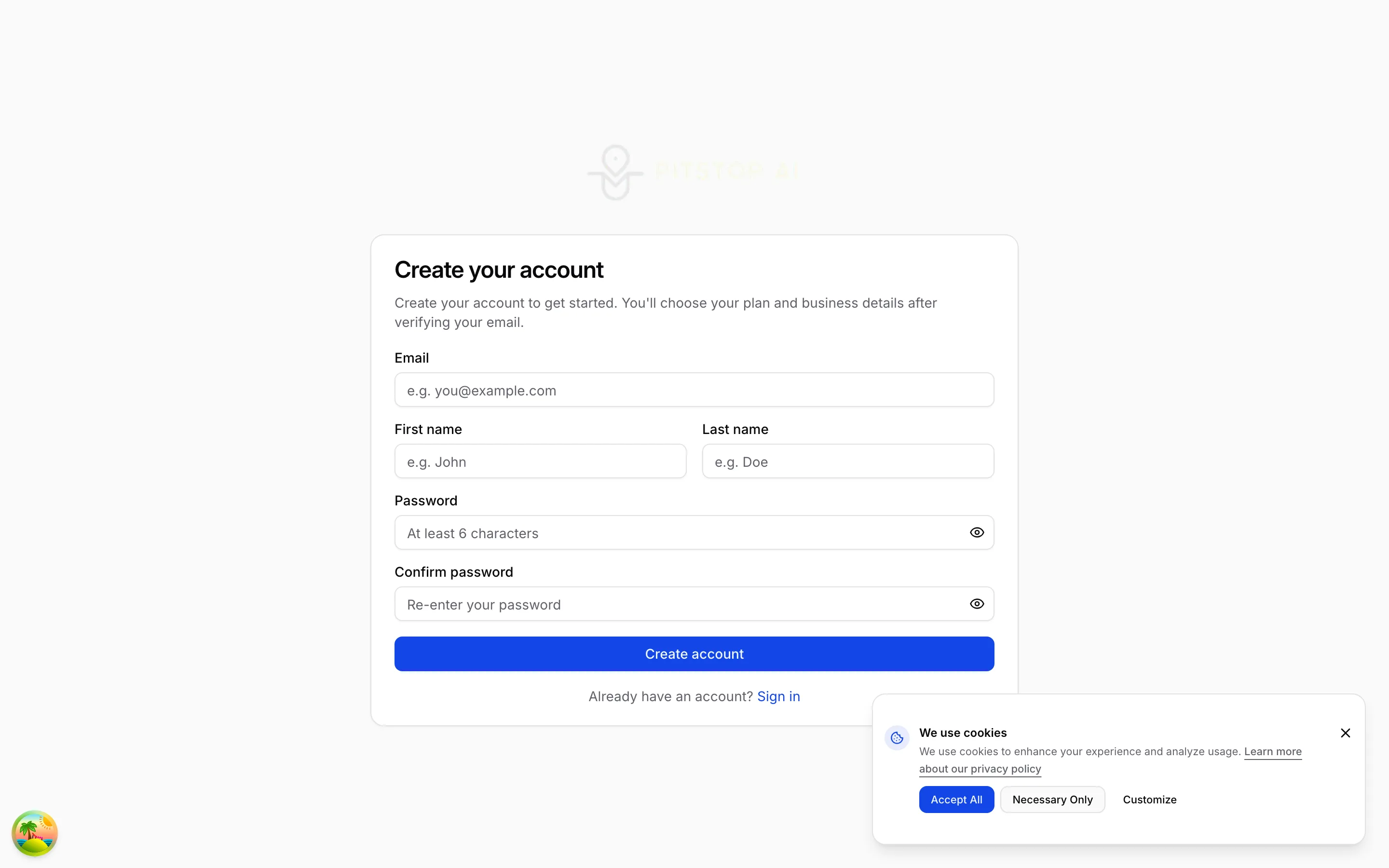
Create account
Sign up at app.pitstopai.co/signup, verify email, and finish the onboarding wizard (business name, timezone, first branch).
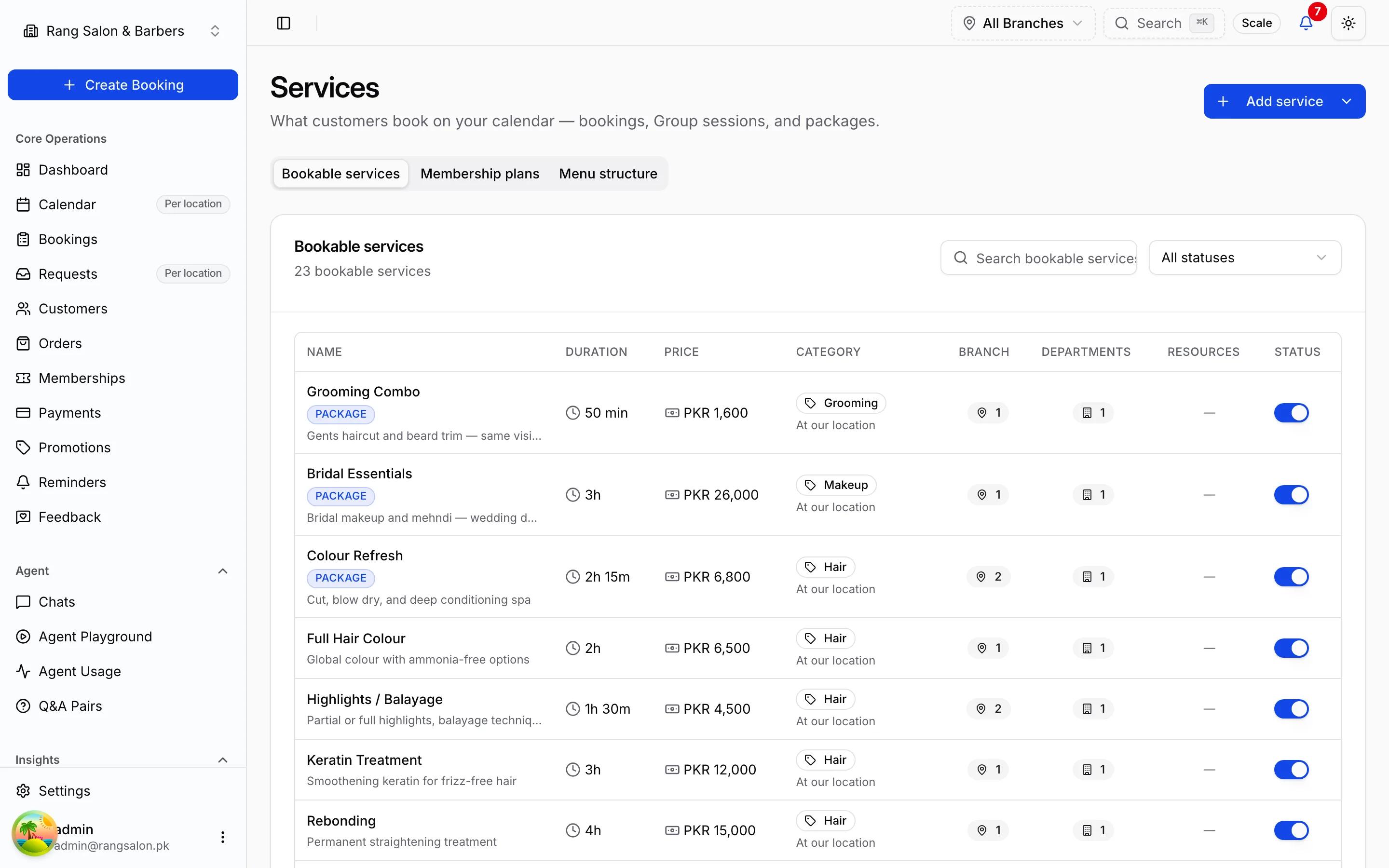
Add services & staff
In Services, create at least one bookable service with duration and price. In Staff, add team members and assign them to services.
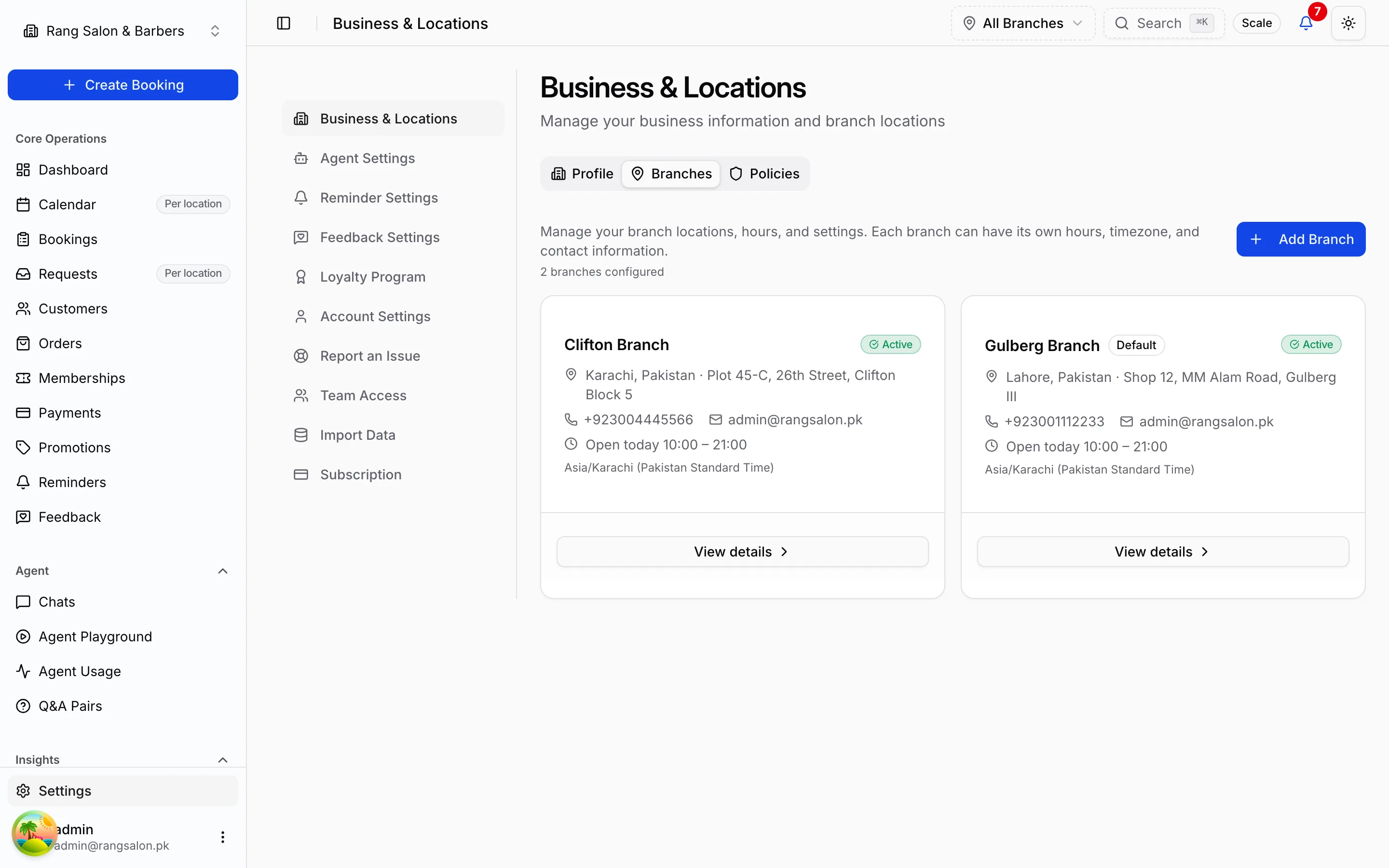
Set business hours
Configure branch hours under Settings → Business & Locations. The AI only offers slots inside these windows.
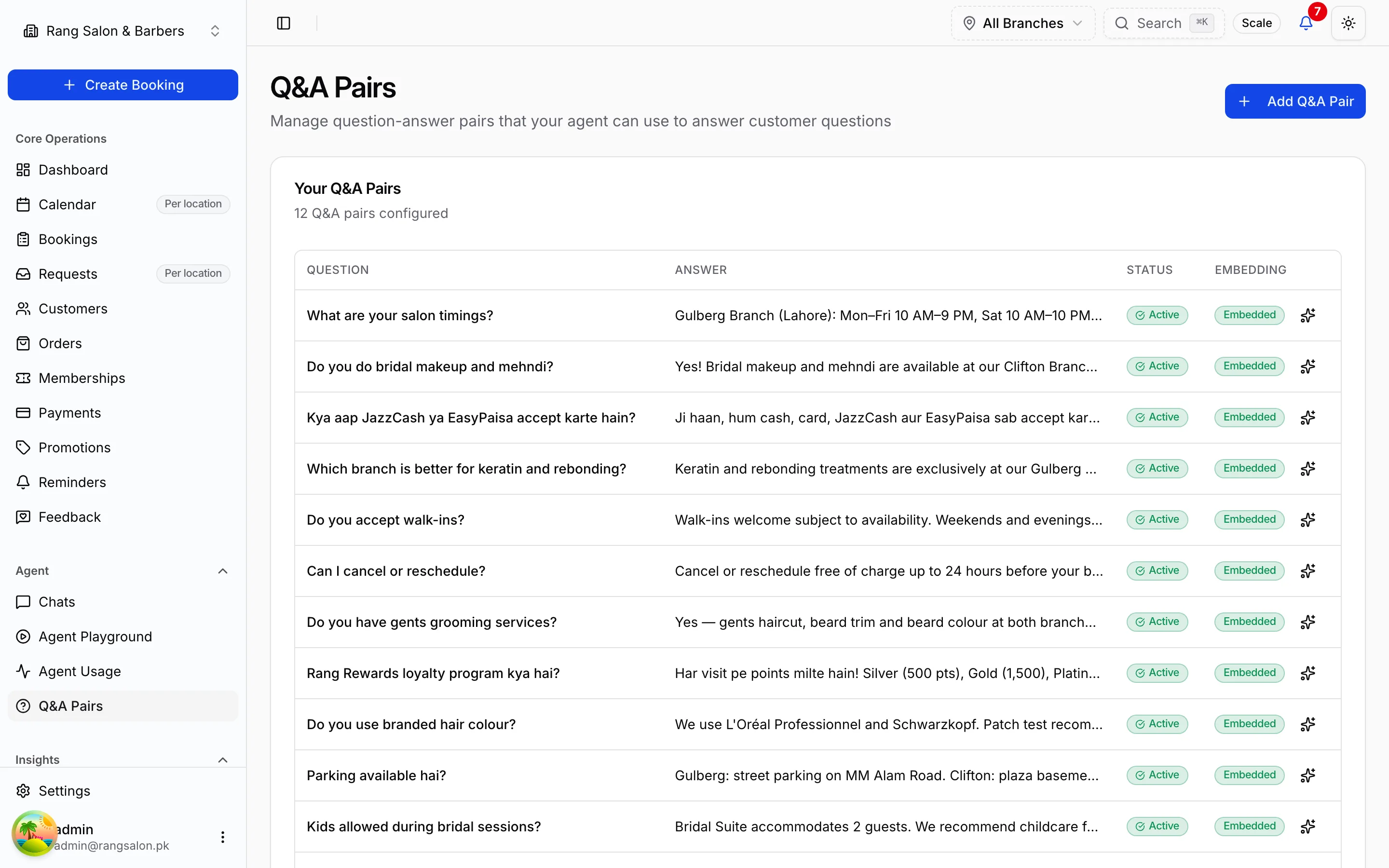
Add FAQ knowledge
Under Q&A Pairs, add question-answer pairs (pricing, policies, parking, etc.). The agent uses these for non-booking questions.
Connect API keys
In Agent Settings: add your LLM provider key (OpenAI, Anthropic, etc.) and WhatsApp/Meta credentials. See WhatsApp setup.
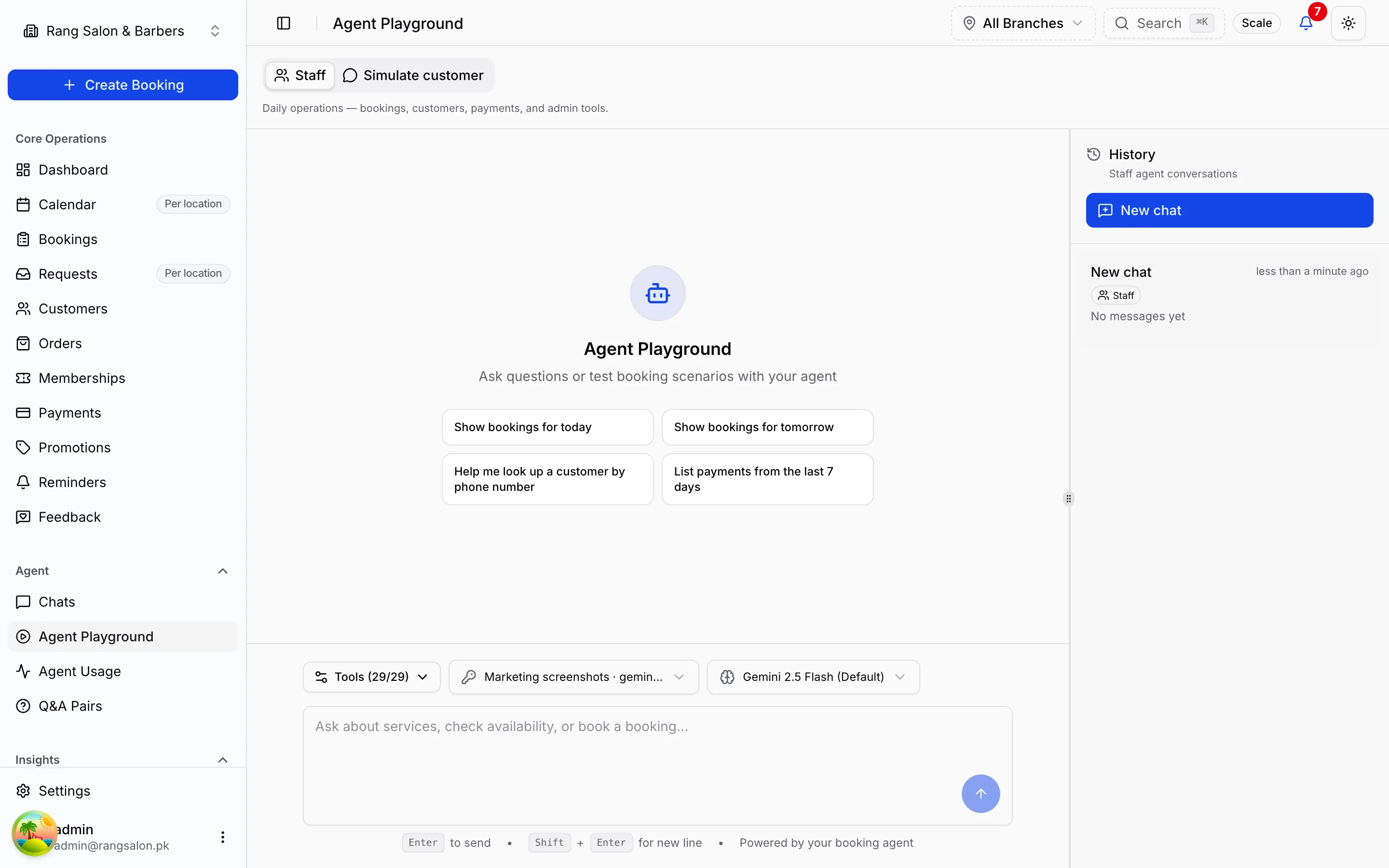
Test in Playground
Open Agent Playground and run test conversations: book, reschedule, ask an FAQ. Fix gaps in services or knowledge base before going live.
Share your number
Add your WhatsApp business number to your website, Instagram bio, and receipts. MonitorChats and Bookings for the first few days.